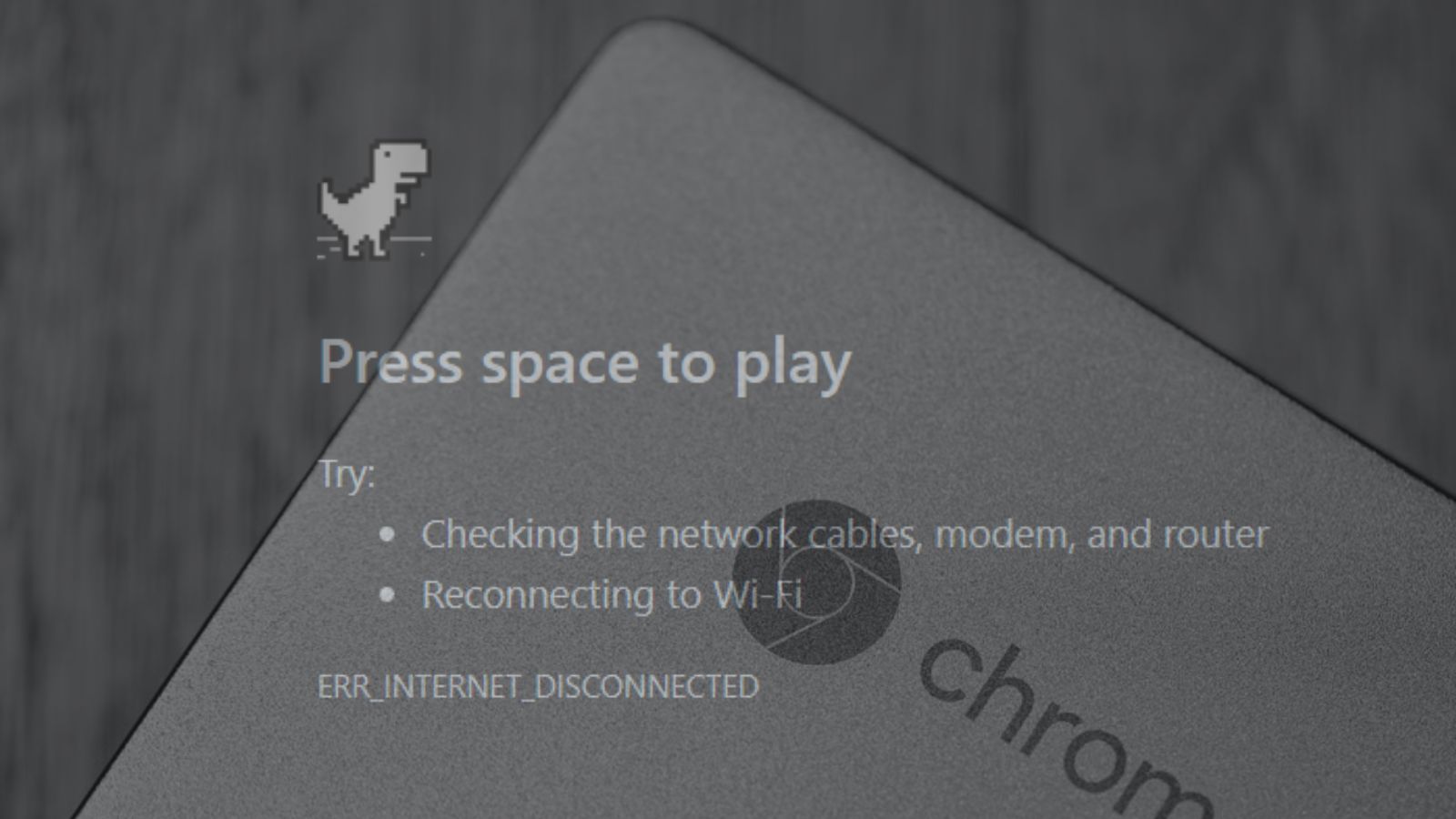
If your Chromebook keeps disconnecting from wifi — mid-video-call, halfway through a form submission, always at the worst moment — you know how genuinely maddening it is. It’s rarely your internet that’s the problem, and it’s a different issue from Wi-Fi 6 speed complaints or a router problem generally. Chromebooks have a handful of specific, well-documented quirks that cause exactly this kind of intermittent disconnect, and most of them take under two minutes to fix once you know where to look — Google covers the general troubleshooting steps in its own Chromebook connection problems guide, but the fixes below go further into the Chromebook-specific causes that guide doesn’t fully explain.
Let’s go through what actually works, roughly in the order you should try them.
Why Your Chromebook Keeps Disconnecting From Wifi
Before the fixes: this pattern — connected, then dropped, then reconnected a minute later — almost always traces back to one of a few specific ChromeOS behaviors, not a failing router or bad internet. Power-saving settings, a stale cached network profile, and a privacy feature called MAC address randomization are responsible for the vast majority of cases. Knowing that up front is useful, because it means working through the list below in order rather than jumping straight to a factory reset.
1. Restart Both the Chromebook and the Router
It sounds too simple to be the fix, but a huge share of “random” Wi-Fi drops trace back to a stuck DHCP lease or a router that’s been running for weeks without a reboot. Power down your Chromebook completely (not just sleep — hold the power button and select Shut down), unplug the router for 30 seconds, then bring both back up. If the disconnects stop right after, you’ve found your answer and can skip everything below.
2. Forget the Network and Reconnect From Scratch
Chromebooks cache a lot of network-specific configuration the first time you join a Wi-Fi network, and that cached profile can quietly go stale — especially after a router firmware update or a password change you don’t remember making. To clear it: click the clock in the bottom-right corner, select the Wi-Fi icon, click on your network name, and choose Forget. Then reconnect and re-enter your password as if it were the first time. This forces ChromeOS to rebuild the connection profile from zero instead of reusing whatever’s gone wrong with the old one.
3. Check for a ChromeOS Update
Google ships Wi-Fi driver and networking-stack fixes in regular ChromeOS updates more often than people realize — if your device has been running the same build for a few months, there’s a real chance the exact bug you’re hitting has already been patched. Check by clicking the clock, opening Settings, then About ChromeOS, then Check for updates. Let it install and restart before trying anything more involved.
4. Turn Off Wi-Fi Power Saving
This is the fix that resolves the problem for a surprising number of people, and it’s buried deep enough that most users never find it on their own. ChromeOS aggressively powers down the Wi-Fi radio to save battery, and on some networks that power-down takes just a bit too long to wake back up, which reads to your router as a dropped connection.
To turn it off: open Settings, type “Wi-Fi” into the search bar, click into your connected network’s details, scroll to Advanced, and look for a power management or sleep-related toggle — switch it off. While you’re there, it’s also worth checking Settings, then Device, then Power for any option that disables connectivity during sleep, and turning that off too.
5. Rule Out Physical Interference
Wi-Fi runs on the 2.4GHz and 5GHz bands, and so do a lot of everyday household devices — Bluetooth speakers and headphones, microwaves, cordless phones, even some baby monitors. If your Chromebook sits near any of these, the interference can be just enough to cause periodic drops rather than a total loss of connection, which is exactly the “keeps disconnecting” pattern rather than “won’t connect at all.” Try turning off Bluetooth from the same clock-icon menu, moving away from the microwave, or switching your router to the 5GHz band if it’s dual-band and your device supports it (5GHz is far less crowded than 2.4GHz in most homes).
6. Check MAC Address Randomization (the one most guides skip)
This one’s specific to Chromebooks and rarely mentioned in generic troubleshooting lists, but it’s a genuinely common cause on school, hotel, or office networks that use a captive portal (the “click to agree” login page) or that filter devices by MAC address. ChromeOS randomizes your device’s MAC address by default for privacy, which means the network can see your Chromebook as a “new” unrecognized device periodically and boot it off until it re-authenticates.
If you’re hitting this specifically on a managed network (not your home Wi-Fi), go to Settings, then Network, then Wi-Fi, click into the network, and look for a MAC address setting. Switching it to use your device’s actual hardware address instead of a randomized one often solves recurring drops on these kinds of networks specifically.
7. Powerwash as a Last Resort
If none of the above helps, a Powerwash (ChromeOS’s version of a factory reset) clears out any corrupted network preferences or conflicting settings that have built up over time. It’s a genuine last resort because it wipes local settings and signs you out of everything — back up anything that isn’t already synced to your Google account first. You’ll find it under Settings, then Advanced, then Reset settings, then Powerwash.
Frequently Asked Questions
Does a Powerwash delete my files?
It removes local settings and any files stored only on the device itself, but anything synced to Google Drive, your Google Account, or the Chrome browser sync stays intact and re-downloads once you sign back in.
Why does this only happen on some networks and not others?
This is the clearest sign it’s the MAC randomization or power-saving issue rather than a hardware fault — if your Chromebook keeps disconnecting from wifi only on specific networks like school or work, hardware is very unlikely to be the cause; a genuine hardware or driver problem would usually show up everywhere.
Is this a hardware problem with my Chromebook?
Almost never, for this specific “keeps disconnecting” pattern (as opposed to “can’t see any networks at all,” which is more often hardware). The vast majority of cases trace back to one of the software settings above.
Work through these in order and you’ll almost certainly land on the fix before you reach Powerwash — most people never get past fix four. If your Chromebook is freezing entirely rather than just dropping Wi-Fi, that’s a different problem with its own fixes — see our Chromebook frozen screen guide instead.

I’m a tech-savvy writer and passionate software engineer who loves exploring the intersection of technology and creativity. Whether it’s building efficient systems or breaking down complex tech topics into simple words, I enjoy making technology accessible and useful for everyone.



Leave a Reply