
Every Mac user eventually hits the same moment: an app freezes, the beachball spins, and clicking does nothing. To force quit Mac apps safely, you don’t need to restart the whole machine — just the one stuck app, without touching anything else you have open. Apple documents the basics in its own force quit support guide, but let’s go through all five ways to do it, from fastest to most “nuclear,” plus the details that guide leaves out.
How to Force Quit Mac Apps: All 5 Methods
Every method below does the same basic thing — closes one unresponsive app safely — but they differ in speed and how much control they give you. Start with the keyboard shortcut; it’s the one worth memorizing.
1. The Keyboard Shortcut (Fastest)
Press Option (⌥) + Command (⌘) + Escape at the same time. This opens the Force Quit Applications window directly — select the unresponsive app (it’s often already highlighted, and macOS usually labels it “Not Responding”) and click Force Quit. This is the method worth memorizing; it works from anywhere, even if the frozen app has “stolen” focus from the rest of your screen.
2. The Apple Menu
If you’d rather use the mouse, click the Apple icon in the top-left corner of your screen, then select Force Quit… from the dropdown. It opens the exact same window as the keyboard shortcut — same list, same button. This is the version worth knowing if you’re on someone else’s Mac and don’t want to fumble a keyboard shortcut in front of them.
3. Right-Click the Dock Icon
Right-click (or Control-click) the frozen app’s icon in the Dock, then hold down the Option key while the menu is open — you’ll see “Quit” change to Force Quit in real time. Click it. This is the quickest method if the app is already sitting right there in your Dock and you don’t want to open a separate window at all.
4. Activity Monitor (For More Control)
Activity Monitor is macOS’s built-in task manager, and it’s the right tool when Force Quit isn’t cutting it — for example, if an app has multiple background processes (browsers are the classic case) and you need to see exactly what’s using memory or CPU before killing anything. Open it via Spotlight (Command + Space, then type “Activity Monitor”), find the process in the list, select it, and click the ⊗ (stop) button in the toolbar, then confirm. Activity Monitor also shows you a “% CPU” column, which is genuinely useful for spotting which background process is actually the one hogging resources when multiple things are open.
5. Terminal (Last Resort for Power Users)
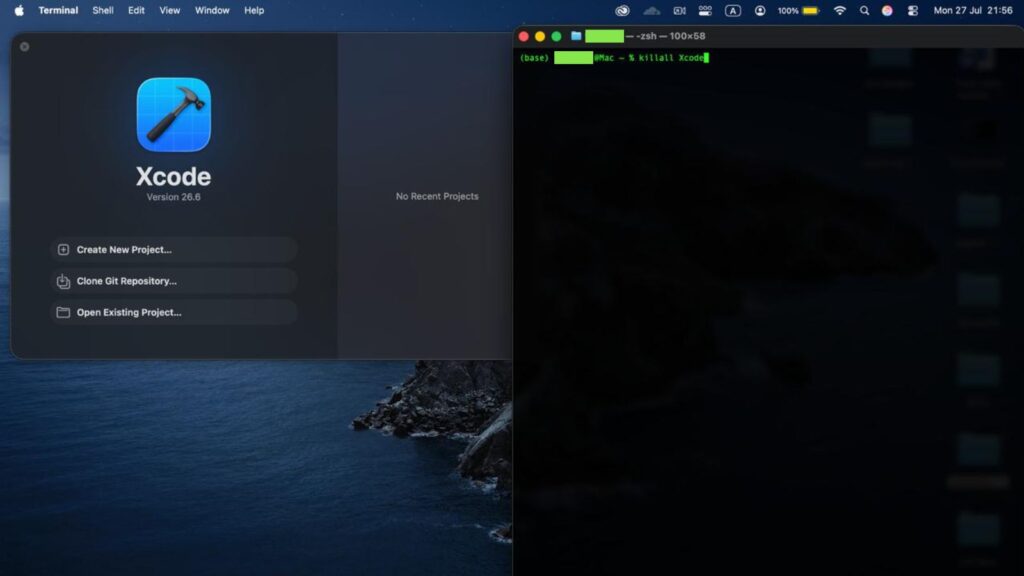
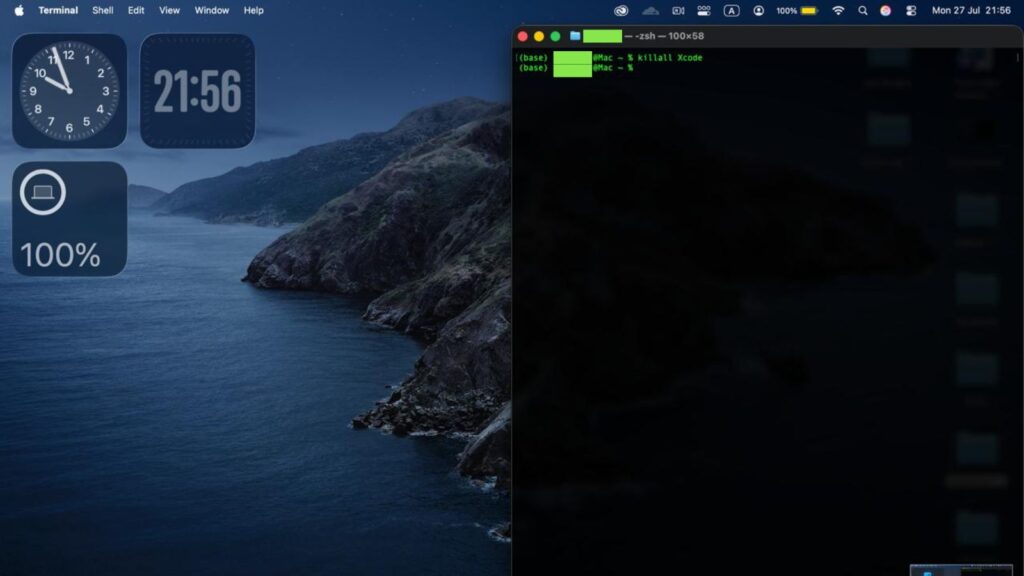
If the app won’t die through any of the above — rare, but it happens with genuinely misbehaving software — Terminal can force it directly. Open Terminal and run:
killall AppNameIf that doesn’t work, escalate to:
pkill -9 AppName-9 sends the most forceful kill signal the operating system supports, bypassing anything the app might be trying to do to keep itself alive. Use the app’s actual process name (Activity Monitor will show you the exact name if you’re not sure), not the display name you see in the Dock — they don’t always match exactly.
Here’s what that actually looks like in practice — Xcode was open and idle (not frozen) for this demo, just to show the command clearly:
What If the Entire Mac Is Frozen, Not Just One App?
If your whole system is unresponsive and none of the above will even open, hold the power button for about 10 seconds to force a full shutdown, then turn it back on. This is a genuine last resort — you’ll lose any unsaved work across every open app, not just the one that was frozen, so only use it once you’ve confirmed Force Quit itself isn’t responding.
Why Do Apps Freeze in the First Place?
Usually it’s one of three things: the app is waiting on a slow or failed network request and hasn’t timed out gracefully, it’s stuck in an infinite loop in its own code, or it’s run out of memory and macOS is struggling to recover. None of these are things you caused, and force quitting is the intended, safe way Apple built macOS to handle exactly this situation — it won’t damage your Mac or corrupt other open apps.
Frequently Asked Questions
Will I lose my work if I force quit an app?
Yes, for that specific app — anything unsaved in the frozen app will be lost. Other open apps are completely unaffected.
What’s the difference between Force Quit and restarting my Mac?
When you force quit Mac apps, only the one stuck application closes; everything else you have open keeps running exactly as it was. Restarting closes everything and reloads the entire operating system — much more disruptive and rarely necessary just because one app froze.
Is it safe to force quit system apps like Finder?
Yes — Finder actually relaunches itself automatically a few seconds after being force quit, since macOS treats it as a core process that should always be running. It’s one of the few apps where force-quitting is genuinely routine rather than a last resort.
Bookmark this page or just memorize the keyboard shortcut — it’s the one you’ll reach for most. If you’re troubleshooting a Windows machine instead, the same problem has a different fix — see our Windows force quit guide. And if it’s your Mac’s Finder that’s cluttered rather than frozen, our guide on showing hidden files on a Mac covers another handy Finder trick.

I’m a tech-savvy writer and passionate software engineer who loves exploring the intersection of technology and creativity. Whether it’s building efficient systems or breaking down complex tech topics into simple words, I enjoy making technology accessible and useful for everyone.





Leave a Reply