When your internet suddenly stops working, websites refuse to load, online games start lagging, or your work VPN refuses to connect, the first instinct is usually to restart the router or blame your internet provider. But in many cases, the problem is much closer to home.
Windows includes powerful built-in networking tools that can help you troubleshoot network errors in minutes without installing any third-party software.
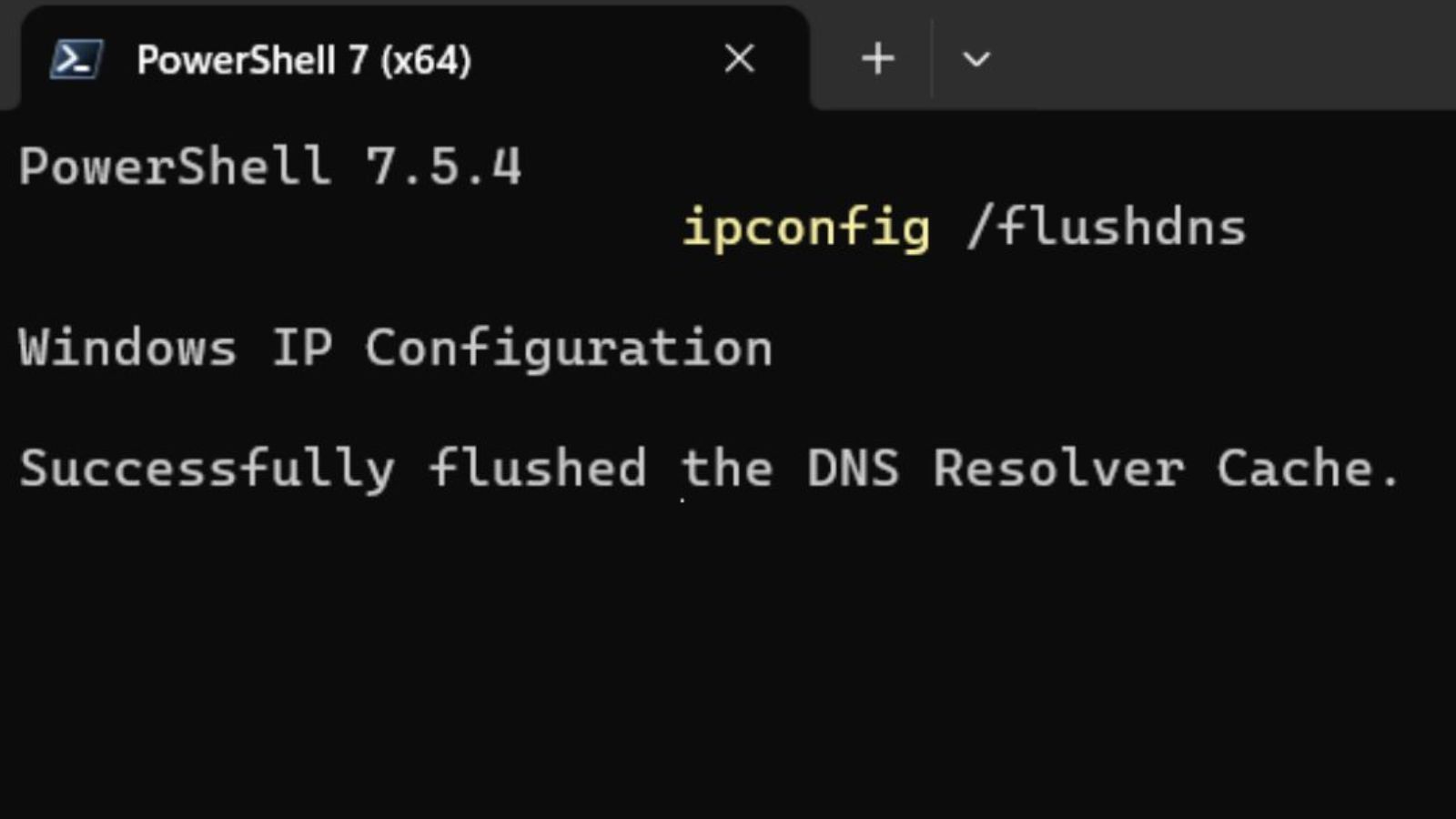
Most users know about the famous DNS flush command:
ipconfig /flushdnsAnd while it’s incredibly useful, it’s only the beginning.
If you really want to diagnose and fix internet connectivity issues like a pro, there are five essential Windows network commands you should know. These commands can reveal where your connection is failing, whether your PC has a valid IP address, whether your DNS server is responding, and whether the issue is on your network or somewhere on the internet itself.
In this guide, you’ll learn exactly what each command does, when to use it, and how it helps you troubleshoot network errors quickly and effectively.
Why Command-Line Tools Are So Effective for Network Troubleshooting
Modern Windows troubleshooting tools are useful but they often hide the real problem behind generic messages like:
- “No Internet Access”
- “DNS server not responding”
- “Can’t reach this page”
- “Connection timed out”
Command-line networking tools show exactly what’s happening behind the scenes.
They allow you to:
- Test connectivity
- Refresh network settings
- Verify IP configurations
- Identify DNS problems
- Locate routing failures
- Detect packet loss
Learning these commands can save hours of frustration. Instead of randomly restarting devices or waiting for technical support, you can diagnose many network problems yourself within minutes.
1. ipconfig — Check Your Network Configuration
The first command every Windows user should learn is:
ipconfigWhen network professionals begin trying to troubleshoot network errors, this is usually the first command they run.
It shows important information like:
- Your IP address
- Subnet mask
- Default gateway
- DNS servers
- Network adapter details
How to Run It
- Press Windows + S
- Type CMD
- Open Command Prompt
- Type: ipconfig
- Press Enter.
What to Look For
A healthy connection usually shows something like:
IPv4 Address. . . . . . : 192.168.1.25
Default Gateway . . . . : 192.168.1.1
This indicates that:
- Your computer successfully received an IP address
- Your router is communicating properly
- Your local network appears healthy
If you see something like:
169.254.x.xyour computer failed to get an IP address from the router.
This usually indicates:
- Router communication issues
- DHCP server problems
- Wi-Fi adapter issues
- Ethernet cable faults
- Driver problems
Advanced Version
To see more details, use:
ipconfig /allThis displays additional data such as:
- MAC address
- DHCP server information
- DNS server settings
- Adapter descriptions
- Lease times
When trying to troubleshoot network errors, ipconfig should always be your starting point.
2. ipconfig /flushdns — Clear Corrupted DNS Cache
DNS issues are one of the most common causes of internet problems.
Windows stores recently visited website addresses in something called the DNS cache to speed up browsing. But cached records can become outdated or corrupted.
That’s where this command helps:
ipconfig /flushdnsWhat It Does
This command clears:
- Old DNS records
- Incorrect IP mappings
- Corrupted cached entries
It forces Windows to request fresh DNS information.
How to Run It
- Step 1 – Open Command Prompt as Administrator and type:
- Step 2 – Type: ipconfig /flushdns
- Step 3 – Press Enter
- Step four – Successfully flushed the DNS Resolver Cache.
This command is often the quickest way to troubleshoot network errors related to websites.
When to Use It
Use this command when:
- Websites refuse to load
- A website moved to a new server
- You changed DNS settings
- Some websites work, others don’t
3. ping — Test If a Device or Website Is Reachable
The ping command tests whether your computer can communicate with another device. It’s one of the fastest ways to identify connectivity issues.
The command:
ping google.comThe ping command sends small packets of data to another device or server and waits for a response. This helps determine whether your computer can successfully communicate with other devices across your network or the internet.
Ping helps answer critical troubleshooting questions:
- Is your internet working?
- Is your router reachable?
- Is DNS functioning?
- Is packet loss occurring?
- Is your connection slow?
How to Use ping
Type:
ping google.comA healthy response may look like:
Reply from 142.xxx.xxx.xxx
time=18ms
This indicates:
- Google is reachable
- DNS is working
- Your internet connection is active
Understanding Ping Times
Response times can tell you a lot about connection quality.
- Below 20ms → Excellent
- 20–50ms → Very good
- 50–100ms → Acceptable
- Above 100ms → Slow
- Above 200ms → Poor
High latency may be caused by:
- Network congestion
- Weak Wi-Fi signal
- ISP routing problems
- Server overload
Common Error Messages
Request Timed Out
Request timed out
Possible causes:
- Internet outage
- Firewall blocking traffic
- Destination unavailable
Could Not Find Host
Ping request could not find host
Usually indicates:
- DNS problems
Testing Your Router
You can also test your router:
ping 192.168.1.1If this fails, the problem is inside your local network.
If you want to troubleshoot network errors efficiently, ping is indispensable.
4. tracert — Find Where the Connection Breaks
Sometimes your internet works normally, but certain websites, online games, VPN services, or cloud applications fail.
That’s where tracert becomes incredibly useful.
Command:
tracert google.comWhat It Does
It tracks every router—or “hop”—between your computer and the destination.
It shows:
- How many network hops exist
- Where delays occur
- Where the connection fails
Example Output
1 1ms 1ms 2ms 192.168.1.1
2 8ms 7ms 9ms ISP Router
3 * * *
If the connection fails at a certain hop, you know exactly where the issue exists.
When to Use It
Use tracert when:
- Websites partially load
- Online gaming servers disconnect
- VPN connections fail
- Cloud services become unreachable
This command helps isolate whether the issue is:
- Your PC
- Your router
- Your ISP
- The destination server
It’s one of the most powerful ways to troubleshoot network errors.
5. netsh winsock reset — Repair Broken Network Components
If your internet suddenly stops working after:
- Installing software
- Removing antivirus
- Updating Windows
- Installing VPN clients
the Windows network stack may be corrupted.
This command repairs it:
netsh winsock resetWhat Is Winsock?
Winsock is the Windows networking interface that allows applications such as browsers, email clients, VPN software, cloud applications, and gaming services to access the internet.
If Winsock becomes corrupted, applications may lose internet access even though Windows says you’re connected.
Winsock corruption can happen after:
- Installing antivirus software
- Removing VPN applications
- Malware infections
- Driver updates
- Windows updates
- Network utility installations
Common Symptoms
You may notice:
- Browsers won’t load
- Apps cannot connect
- VPN stops working
- DNS errors
- Windows shows “Connected” but nothing works
How to Run It
Open Command Prompt as Administrator and type:
netsh winsock resetYou’ll see:
Successfully reset the Winsock Catalog.
Then restart your computer.
When to Use It
Run this command when:
- Internet works on other devices but not your PC
- Browsers won’t connect
- Network apps fail unexpectedly
It’s one of the most effective fixes for stubborn network problems.
Bonus Command: ipconfig /release and ipconfig /renew
If your PC has an incorrect IP address, these commands can refresh it.
Release your current IP:
ipconfig /releaseRequest a new IP:
ipconfig /renewUse these when:
- Wi-Fi says “Connected, No Internet”
- You see a 169.254 address
- DHCP errors appear
These commands often instantly restore connectivity.
Recommended Troubleshooting Order
When trying to troubleshoot network errors, follow this sequence:
Step 1 — Check Network Details
ipconfigStep 2 — Test Router Connection
ping 192.168.1.1Step 3 — Test Internet Access
ping google.comStep 4 — Clear DNS Cache
ipconfig /flushdnsStep 5 — Trace Connection Problems
tracert google.comStep 6 — Reset Windows Networking
netsh winsock resetFollowing this order helps you identify the problem logically instead of guessing.
Frequently Asked Questions
Is it safe to use these commands?
Yes. These are official Windows networking tools and are completely safe when used correctly.
Do I need administrator access?
Some commands, such as:
ipconfig /flushdnsand
netsh winsock resetrequire administrator privileges.
Will these commands make my internet faster?
Not directly. However, they can remove faulty settings, cached errors, and corrupted network configurations that may be slowing your connection.
How often should I use these commands?
Only when you need to troubleshoot network errors or diagnose connectivity problems.
They’re troubleshooting tools—not daily maintenance commands.
Related reading:
7 Essential Network Commands Every Web Developer Must Know
Top 10 Linux Commands That Everyone Should Know
How to Create a Sudo User in CentOS Linux
Final Thoughts
Knowing how to troubleshoot network errors using Windows command-line tools can save hours of frustration.
Instead of restarting your router over and over—or waiting for tech support—you can quickly diagnose what’s actually wrong.
Start with:
ipconfigMove to:
pingThen:
tracertAnd if necessary, repair Windows networking with:
netsh winsock resetOnce you master these five commands, you’ll be able to solve most common Windows internet problems like a professional.
Is your internet working, but your Wi-Fi is just slow? Check out our guide on How Fast is Wi-Fi 6? Real-World Speeds vs. Marketing Hype(2026)

I’m a Mechatronics Engineering enthusiast and tech writer who believes intelligent systems should be understandable to everyone. I’m passionate about robotics, embedded systems, and AI-driven automation—and even more passionate about breaking down how they work into clear, compelling stories. By blending hands-on engineering experience with thoughtful writing, I help readers connect with the technology shaping our future.





Leave a Reply