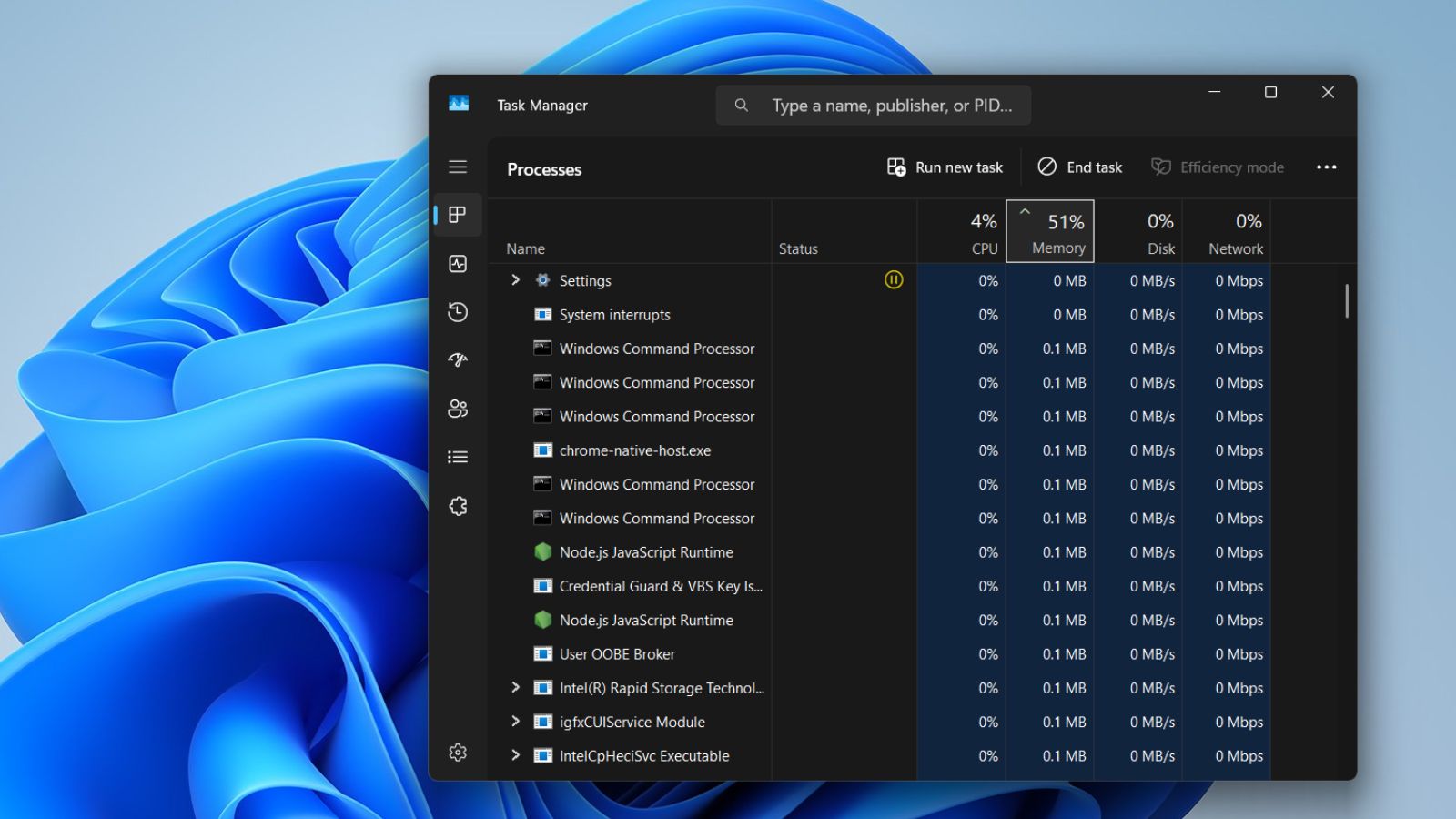
If you’re searching how to force quit on Windows because a program’s stopped responding — window frozen, clicking does nothing, closing it the normal way just makes Windows spin its wheels — the fix is almost always the same regardless of which app is stuck. Let’s start with the one that works most reliably — Microsoft’s own Task Manager documentation covers the tool itself in more depth if you want the full reference.
How to Force Quit on Windows: 5 Methods, Fastest First
Every method below closes the one stuck program without touching anything else you have open or restarting Windows itself. Task Manager is the most reliable starting point.
1. Task Manager (The Reliable Method)
Press Ctrl + Shift + Esc to open Task Manager directly — this is the fastest way in, since it skips the extra confirmation screen that Ctrl+Alt+Delete shows first. Once it’s open:
- Click the Processes tab if it isn’t already selected.
- Find the frozen app — Windows usually labels it clearly with “(Not Responding)” next to its name, which is your confirmation it’s genuinely stuck and not just slow.
- Select it and click End task.
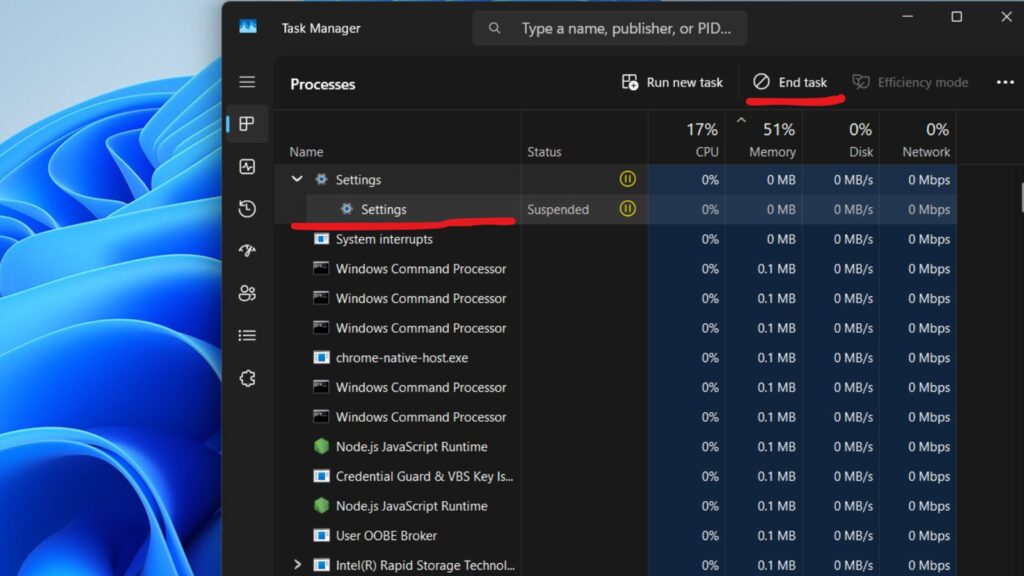
That’s it. The app closes immediately, and everything else you have open is untouched.
One label worth knowing about: you might sometimes see “Suspended” next to a background app instead of “(Not Responding).” That’s a different, usually harmless thing — Windows deliberately pauses apps you’re not actively using to save memory and battery, it’s not a sign anything’s broken. The End Task steps above work exactly the same either way, but “Suspended” alone isn’t a reason to force quit something.
2. Ctrl + Alt + Delete (If Ctrl+Shift+Esc Doesn’t Respond)
If your system is under enough strain that the direct shortcut doesn’t open Task Manager fast enough, press Ctrl + Alt + Delete instead. This brings up a security screen with a few options — choose Task Manager from the list, then follow the same steps above.
3. Alt + F4 (Quickest for a Single Window)
If the frozen window is the one currently active — i.e., it’s the window you were just clicking into — pressing Alt + F4 will close it directly, no Task Manager needed. Double-check the right window has focus first, since Alt+F4 closes whatever’s currently active, not necessarily the one that’s actually frozen if you’ve since clicked elsewhere.
4. Windows 11’s Built-In Taskbar Shortcut
Windows 11 has a lesser-known feature that skips Task Manager entirely once you turn it on: go to Settings, then System, then For Developers, and toggle End Task on. After that, you can right-click any running app directly on the taskbar and choose End task straight from that menu — genuinely the fastest option once it’s enabled, since you never have to leave what you’re doing to open a separate window.
5. Command Line (For Power Users)
If you’re comfortable with the command line, Command Prompt or PowerShell can force-close a program by its process name:
taskkill /IM programname.exe /FThe /F flag forces the termination rather than requesting a graceful close, which is exactly what you want for something that’s already stopped responding. You can find the exact process name in Task Manager’s Processes tab if you’re not sure what to type.
What If Task Manager Itself Won’t Open?
This is rare, but if your whole system is so overloaded that even Task Manager won’t respond, hold the power button for about 10 seconds to force a full shutdown, then power back on. Treat this as a genuine last resort — you’ll lose unsaved work in everything you had open, not just the one frozen program, so only go here once you’ve confirmed Task Manager truly isn’t responding rather than just taking a few extra seconds to load.
Why Do Programs Freeze on Windows?
Most of the time it comes down to one of the same handful of causes regardless of which program it is: it’s waiting on a network request that’s taking too long to time out, it’s run into a bug that’s put it into an infinite loop, or it’s simply run out of available memory. None of it means anything is wrong with Windows itself — force-closing the one stuck program is the normal, safe way to recover, and it’s built into Windows specifically for this situation.
Frequently Asked Questions
Will force quitting delete my files?
No — knowing how to force quit on Windows only affects unsaved work inside that specific program. Files you’ve already saved, and everything else you have open, are unaffected.
What does “(Not Responding)” actually mean in Task Manager?
It means Windows hasn’t received any response from that program for a set period of time and has confirmed it’s genuinely stuck, not just working slowly in the background. It’s a reliable signal that force-closing is the right call.
Is there a way to avoid frozen programs happening in the first place?
Keeping Windows and your apps updated closes off a lot of the bugs that cause freezes — see what changed in the Windows 11 update roundup for an example of the kind of fixes these updates actually include — and closing background apps you’re not using reduces how much memory pressure builds up. There’s no permanent fix, though — even a healthy, fully updated system will occasionally hit a program that stops responding.
Ctrl + Shift + Esc is the one worth remembering — it’ll get you out of nearly every frozen-program situation you run into. If you’re on a Mac instead, the equivalent shortcut and four other methods are in our Mac force quit guide.

I’m a tech-savvy writer and passionate software engineer who loves exploring the intersection of technology and creativity. Whether it’s building efficient systems or breaking down complex tech topics into simple words, I enjoy making technology accessible and useful for everyone.





Leave a Reply