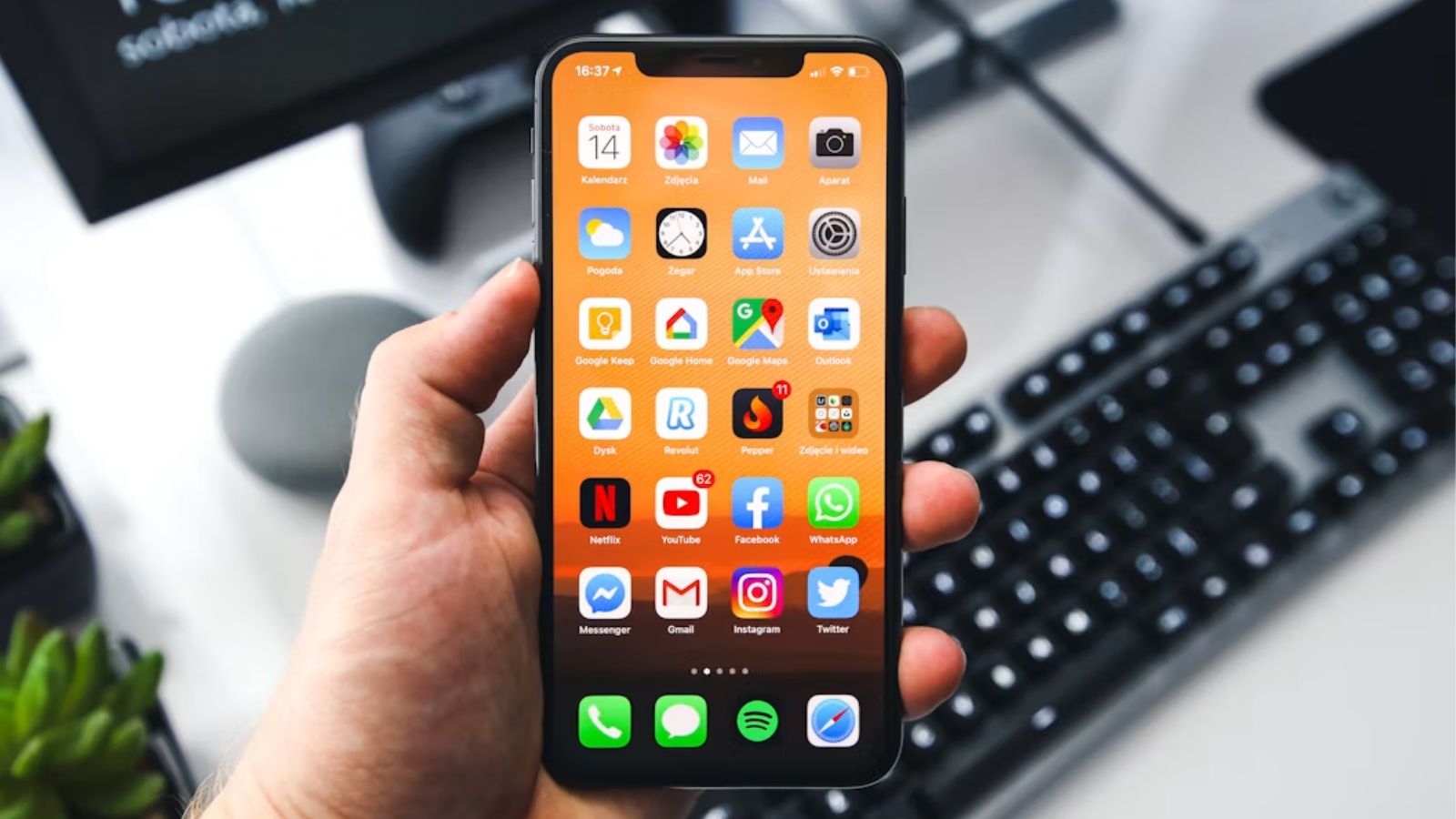
If you’re looking up how to hide an app on iPhone, there’s a good chance it’s for one of two reasons: you just want a cluttered Home Screen to look cleaner, or you want a specific app to stay genuinely private from anyone else who picks up your phone. Those are actually two different jobs, and iOS has a separate tool for each one. Let’s go through both, so you pick the one that actually matches what you need.
How to Hide an App on iPhone: 2 Ways That Actually Work
The quick version: removing an app from your Home Screen just tidies things up, nothing is locked or private. Apple’s own Hide feature goes further — it password-protects the app and moves it out of sight completely. Here’s how each one works.
Method 1: Remove From Home Screen (Quick Declutter, No Privacy)
Touch and hold the app icon until the quick-actions menu opens, tap Remove App, then choose Remove from Home Screen (not Delete App — that one deletes it entirely). The icon disappears from your Home Screen, but the app itself is still installed and sitting in your App Library, and it’s still fully searchable through Spotlight search. This is purely cosmetic: anyone who swipes over to App Library or searches for the app by name will find it instantly. Good for tidying up, not for actually hiding something from another person.
Method 2: Hide and Lock the App (Real Privacy, Face ID Required)
This is Apple’s actual built-in hiding feature, and it does something meaningfully different. Touch and hold the app icon, tap Require Face ID (this locks it first), then touch and hold it again and tap Hide and Require Face ID. Authenticate with Face ID, Touch ID, or your passcode when prompted, then confirm by tapping Hide App.
Once an app is hidden this way, it disappears from your Home Screen entirely and moves into a dedicated Hidden folder tucked at the very bottom of App Library. Opening it requires Face ID, Touch ID, or your passcode, and it stops showing up in notification previews, Siri suggestions, spotlight search results, and your call history too. Apple documents the full behavior in its own support guide on locking and hiding apps if you want every detail.
What Hiding Doesn’t Cover
A hidden app’s name can still show up in a few places Apple doesn’t hide: Screen Time reports, Battery Usage by App in Settings, and your App Store purchase history. It’s also worth knowing that hiding or locking an app only applies to the one device you did it on — this status doesn’t sync through iCloud, so the app reappears normally on any other iPhone signed into the same account. One more limitation: apps that came pre-installed with iOS 18 or later can’t be hidden this way, only apps you’ve downloaded yourself.
Which One Should You Actually Use?
If you just want a cleaner Home Screen and don’t care who sees the app exists, Method 1 takes ten seconds and is completely reversible from App Library any time. If you actually want an app to stay private from anyone else using your phone, Method 2 is the one worth setting up properly, even though it takes a couple more taps.
Frequently Asked Questions
Does how to hide an app on iPhone work the same on every iOS version?
Not quite. Removing an app from the Home Screen has worked the same way since App Library was introduced in iOS 14. The dedicated Hide and Require Face ID option is newer, introduced in iOS 18 — if you don’t see it in the quick-actions menu, your iPhone likely needs an iOS update first.
Can someone tell an app is hidden by checking Screen Time or battery usage?
Yes, partially. Apple is upfront about this — a hidden app’s name still appears in Screen Time reports, Battery Usage by App, and your App Store purchase history, even though the icon itself is gone from the Home Screen and App Library’s visible view.
Will a hidden app show up again if I switch to a new iPhone?
Yes. Hidden and locked status doesn’t sync through iCloud, so restoring your data onto a different iPhone brings the app back to a normal, visible state. You’d need to hide it again on the new device.
Removing an app from the Home Screen is enough for most people who just want less clutter, but if privacy is the actual goal, take the extra minute to set up Hide and Require Face ID properly. And if it’s your iPhone freezing or acting unresponsive rather than needing more privacy, our guide on force restarting an iPhone covers that instead.

I’m a tech-savvy writer and passionate software engineer who loves exploring the intersection of technology and creativity. Whether it’s building efficient systems or breaking down complex tech topics into simple words, I enjoy making technology accessible and useful for everyone.





Leave a Reply