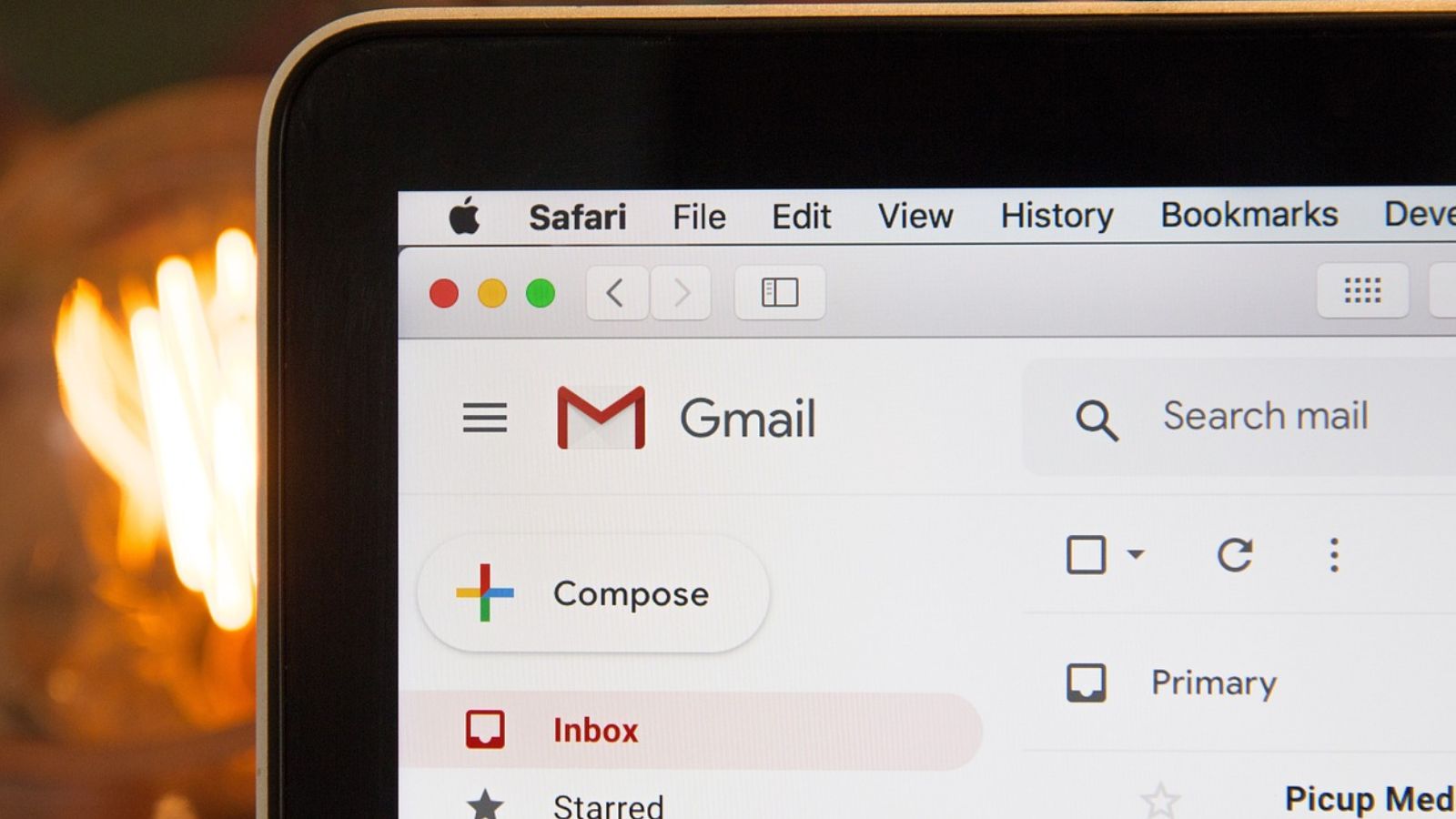
We’ve all had that moment of hesitation before hitting “Send.” Whether it’s a tax document containing your Social Security Number, a contract with sensitive financial details, or confidential client information, sending private data over standard email can feel like a gamble.
If you use Google’s email service, you likely know that data privacy is a top concern. But when it comes to securing your messages, what actually works? Today, we are breaking down the difference between Gmail Confidential Mode and End-to-End Encryption (E2EE), showing you exactly how to protect your communications on both desktop and mobile.
The Core Difference: Access Control vs. True Encryption
Before we dive into the “how-to,” it is crucial to understand that Gmail’s Confidential Mode is not an encryption mechanism.
What is Gmail Confidential Mode?
Think of Confidential Mode as a set of strict digital guardrails. It restricts what the recipient can do with your email. When enabled, the recipient cannot forward, copy, print, or download the message or its attachments. You can also set an expiration date (after which the email vanishes) and require an SMS passcode to open it.
However, Google itself states that the message is not end-to-end encrypted. It can technically still be intercepted in transit, and it doesn’t stop someone from taking a screenshot of their screen.
What is End-to-End Encryption (E2EE)?
End-to-End Encryption (E2EE) scrambles your message before it leaves your device and only unscrambles it when it reaches the intended recipient’s device. Even if intercepted by hackers—or even Google itself—the data remains unreadable without the unique decryption key.
When to Use Which?
- Rely on Gmail’s Confidential Mode when: You are sending casual but private information (like a draft of a personal project or an internal memo) and you just want to prevent accidental forwarding, copying, or lingering access. It is built-in, free, and requires zero setup for the recipient.
- Rely on Third-Party End-to-End Encryption when: You are sending highly sensitive data (medical records, financial details, passwords, or legal documents). For free Gmail users, browser extensions like FlowCrypt or Mailvelope offer PGP-based E2EE. For corporate users, Google Workspace offers built-in S/MIME or Client-Side Encryption—but these require paid tiers and specific setup on both ends.
Practical Steps: Sending a Confidential Email in Gmail
If Confidential Mode fits your needs, here is exactly how to use it to lock down your messages and attachments.
1. Enabling Confidential Mode on Desktop
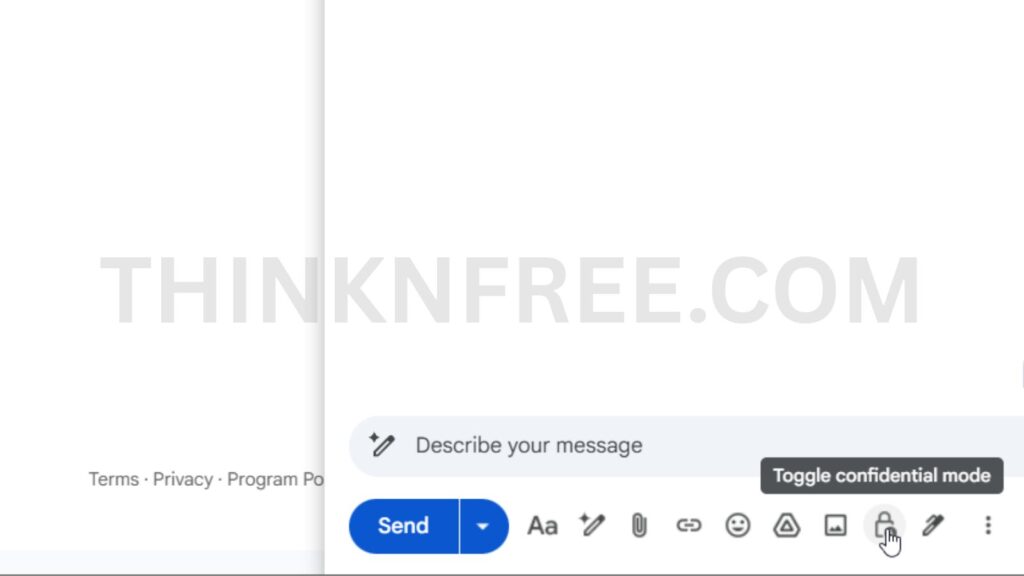
- Open Gmail and click Compose.
- At the bottom of the window, click the Turn on confidential mode icon (a small padlock with a clock).
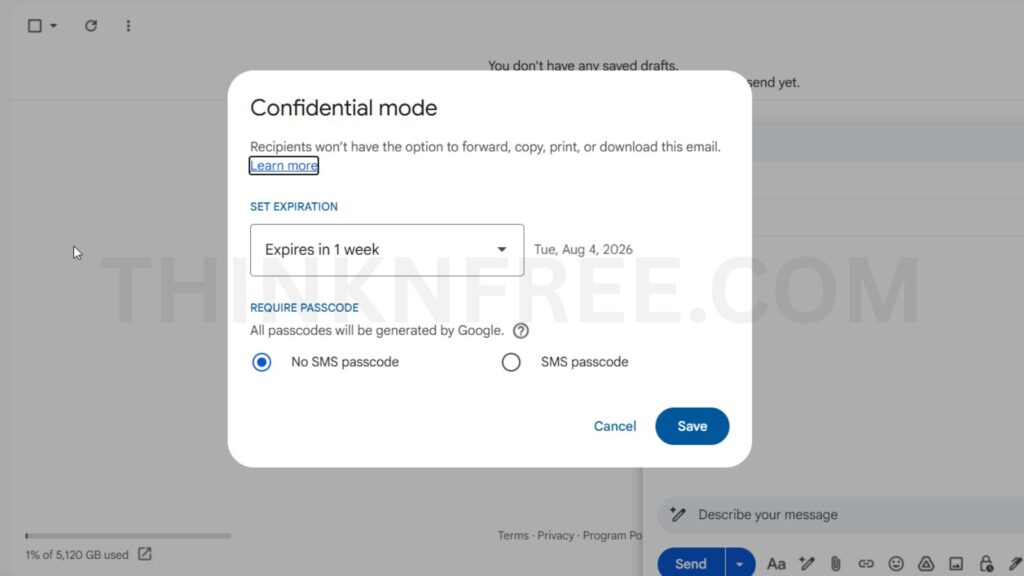
- A settings window will appear. Here, set your Expiration date (ranging from 1 day to 5 years).
- Choose your Require passcode setting:
- No SMS passcode: Recipients using the Gmail app can open it directly. Non-Gmail users will get an emailed passcode.
- SMS passcode: You will need to enter the recipient’s phone number. They will receive a text message with a code to unlock the email.
- Click Save, compose your email, attach your files, and click Send.
2. Enabling Confidential Mode on Mobile (iOS & Android)
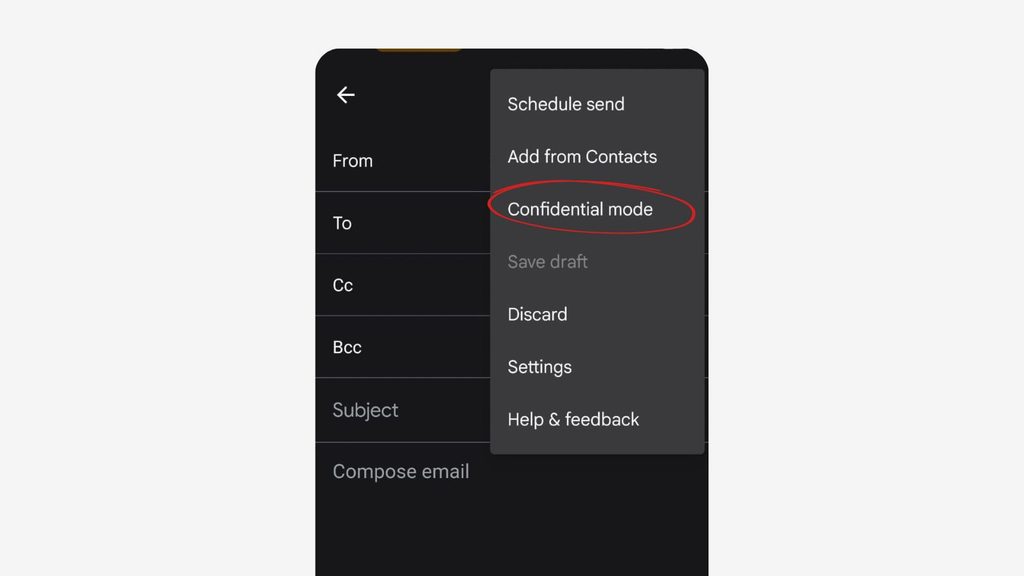
- Open the Gmail app and tap Compose.
- Tap the More menu (three vertical dots) in the top right corner.
- Select Confidential mode.
- Toggle the mode on, set your expiration date, and choose your passcode requirements.
- Tap the checkmark or Save, finish your email, and hit send.
Secure Attachment Handling
When you attach files (like PDFs or images) in Confidential Mode, the download restrictions apply to the attachments automatically. The recipient will be able to view them within the secure viewer, but they will not see a download or save button.
How to Revoke Access Early
Did you send an email with a 1-week expiration, but realize you need to pull access today?
- Go to your Sent folder.
- Open the confidential email you sent.
- Click or tap the Remove access button at the bottom of the email. The recipient will immediately lose the ability to view the email or its attachments.
The Think & Free Pre-Send Security Checklist
At Think & Free, we believe that good security starts with good habits. Before you hit send on anything sensitive, run through this simple, printable checklist to ensure you aren’t leaving your data exposed.
The Think & Free Secure Email Checklist
1. Assess the Data: Is this highly sensitive (financial/medical/passwords)? If yes, use a third-party E2EE tool (like FlowCrypt) instead of Confidential Mode.
2. Verify the Recipient: Did I double-check the email address? (Autofill is the enemy of confidentiality!).
3. Choose the Right Expiration: Does the recipient need this information for a day, a week, or a month? Set the tightest window possible.
4. Enforce a Passcode: Did I select “SMS Passcode” for an extra layer of identity verification?
5. Clean the Subject Line: Did I remove sensitive details from the Subject Line? (Note: Confidential Mode does NOT hide the subject line!).
6. Document Review: Did I remove metadata or hidden comments from any attached Word or PDF documents before attaching them?
Need stronger protections for your business communications or personal website? Think & Free is your go-to resource for tech tutorials, downloadable security templates, and deep dives into safeguarding your digital footprint. Stick around our blog for more expert guides on taking back control of your privacy.
If You Actually Need Real Encryption: S/MIME
S/MIME (Secure/Multipurpose Internet Mail Extensions) is the option that provides genuine end-to-end encryption in Gmail — only the intended recipient can read the message, even if it’s intercepted along the way. The catch is that it requires a paid Google Workspace tier, and both you and the person you’re emailing need S/MIME support set up on your end. This makes it a solid choice for businesses handling sensitive information regularly, but it’s not something a free personal Gmail account can turn on.
The Strongest Option: Client-Side Encryption
For organizations that need the highest level of protection, Google offers Client-Side Encryption (CSE), available on Workspace Enterprise Plus plans. This encrypts the content before it ever leaves your device, so not even Google can read the message content. It’s the most secure built-in option Gmail offers, but it’s built for enterprise use, not everyday personal email.
What Free Gmail Users Can Actually Do
If you’re on a regular free Gmail account and need real encryption rather than just Confidential Mode’s access controls, third-party tools are the practical route. Browser extensions like FlowCrypt and Mailvelope add PGP-based end-to-end encryption directly into Gmail’s interface, while services like SendSafely handle secure file and message transfer separately. These require the recipient to be able to decrypt the message too, so they work best when both sides are willing to set something up — not for a one-off email to someone who’s never heard of encryption.
So Which Should You Actually Use?
For most everyday situations — sending something you’d rather not have forwarded around, like a document with personal details — Confidential Mode is genuinely fine, as long as you understand it’s about access control, not true privacy from interception. If you’re sending something genuinely sensitive (financial details, medical information, legal documents) and want real protection, that’s when it’s worth the extra step of a tool like FlowCrypt or, for a business, actually setting up S/MIME. And regardless of which option you use for sending, it’s worth pairing with knowing how to spot a phishing link on the receiving end — encryption protects what you send, not what lands in your inbox from someone else.
Frequently Asked Questions
Is Gmail Confidential Mode the same as encryption?
No. It restricts what recipients can do with a message (forwarding, copying, printing) and adds an expiration option, but the message itself isn’t end-to-end encrypted, and Google is explicit that it doesn’t stop screenshots.
Do I need a paid account to know how to send secure email in Gmail?
For Google’s own built-in encryption (S/MIME or Client-Side Encryption), yes — both require a paid Workspace tier. Free personal Gmail accounts can still get real encryption through third-party tools like FlowCrypt.
Can the person I’m emailing read an encrypted message without extra setup?
Not with true end-to-end encryption — the recipient generally needs compatible software or a matching tool on their end. This is the main tradeoff against Confidential Mode, which works with zero setup on the recipient’s side but offers less real protection.
The short version worth remembering: know what each option actually protects against before you rely on it — Confidential Mode for casual access control, real encryption for anything you’d genuinely worry about if it leaked.

I’m a tech-savvy writer and passionate software engineer who loves exploring the intersection of technology and creativity. Whether it’s building efficient systems or breaking down complex tech topics into simple words, I enjoy making technology accessible and useful for everyone.





Leave a Reply