Python programming hello world, the first simple program that everyone uses to test out when it comes to learn a new programming language, which is the hello world program. With this article, let’s discover what this Hello World program is and what it looks like in Python.
What is “Hello, World!”?
Hello World is a simple program that outputs the simple “Hello, World!” text in your console or screen. This will help new users understand the core concepts about the language and its syntax. Also, this first program confirms that the programming environment has been set up correctly.
Creating this first simple program helps anyone to get a winning start. And also, it comes with a better understanding of the code structure, what it looks like, and how it works. So now is the time to move on with the real deal; let’s go ahead.
Python code to hello world
When it comes to Python, it’s actually a one-line program,
print("Hello, World!")Here is the quick overview of the program.
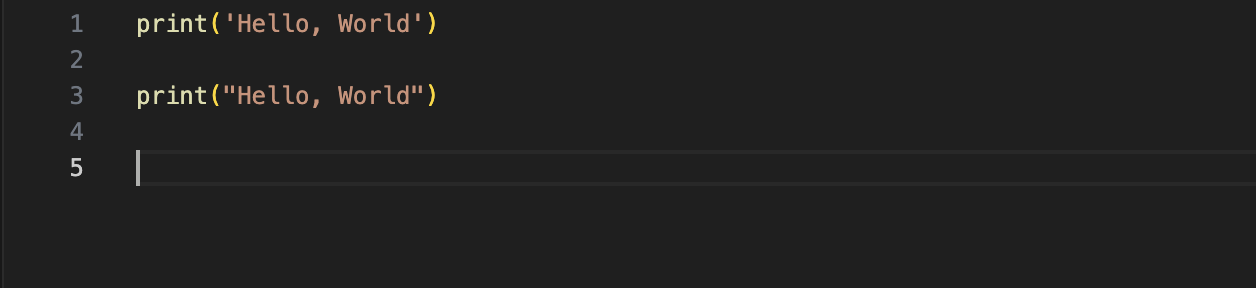
print()Print is used to display whatever is inside its parentheses on the screen.""You can see the double quotes in the program, which indicate that the content inside the parentheses is aString. It’s a data type that we use in most programming languages to display textual data. In Python, we have multiple options like using ” ” double quotes, or ‘ ‘ single quotes.
How to run your Hello World Python program
Now it’s time to run your first Python program. There are multiple ways you can use to run your Python programs,
- Using an online Python Interpreter
- Python shell
- Using script mode
With this lesson, I’m not going to use the online Python interpreters; there are many free online interpreters available, so I hope you can find one that suits you. Let’s explore other ways of executing Python code.
Run the Python programming hello world program using the shell
First of all, make sure you have already installed Python development and other packages on your pc. If you need to learn how to do it, follow our first Python article, which is How do I learn Python.
Also, if you need more comprehensive guidance, please follow the Beginners’ Guide to Downloading Python.
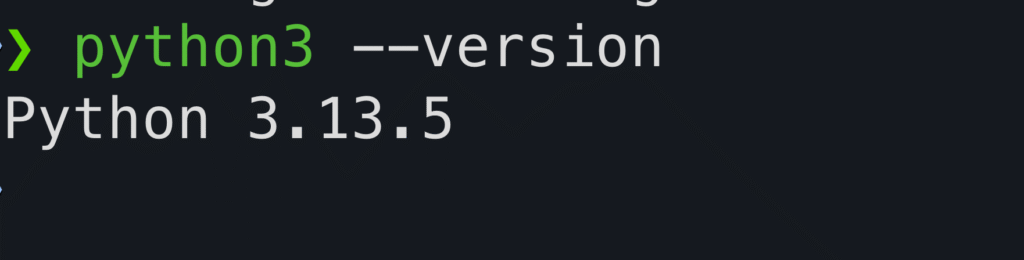
Ok, now after you successfully installed Python on your system, you can check if installed correctly or not by using this command. If you are a Windows user, you can use PowerShell or Windows Terminal to run these commands; if you are a Mac or Linux user, you can use your Linux terminal or Mac terminal to run these commands.
Latest article: How to Create a Sudo User in Linux.
python3 --versionIt provides output that looks like this,
Now you can access the Python shell using this command,
python3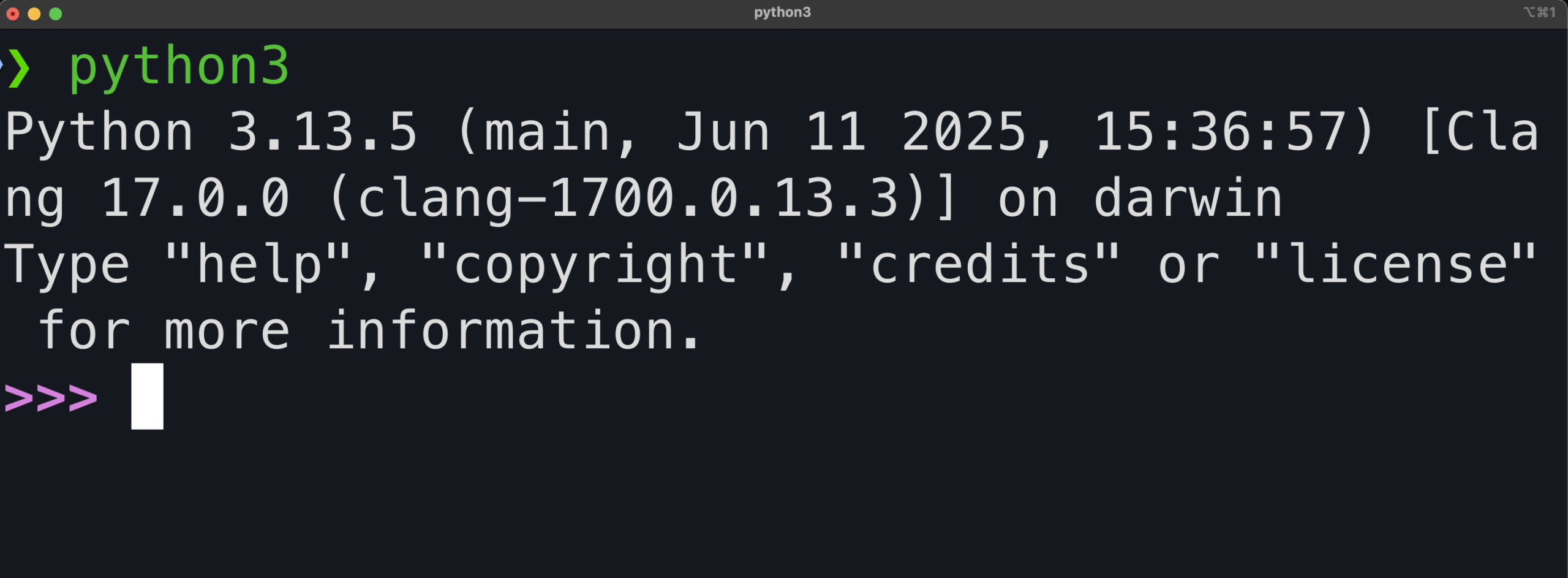
Now, in here, you can execute any Python command, function, or program logic. You can run your Hello World program in the shell.
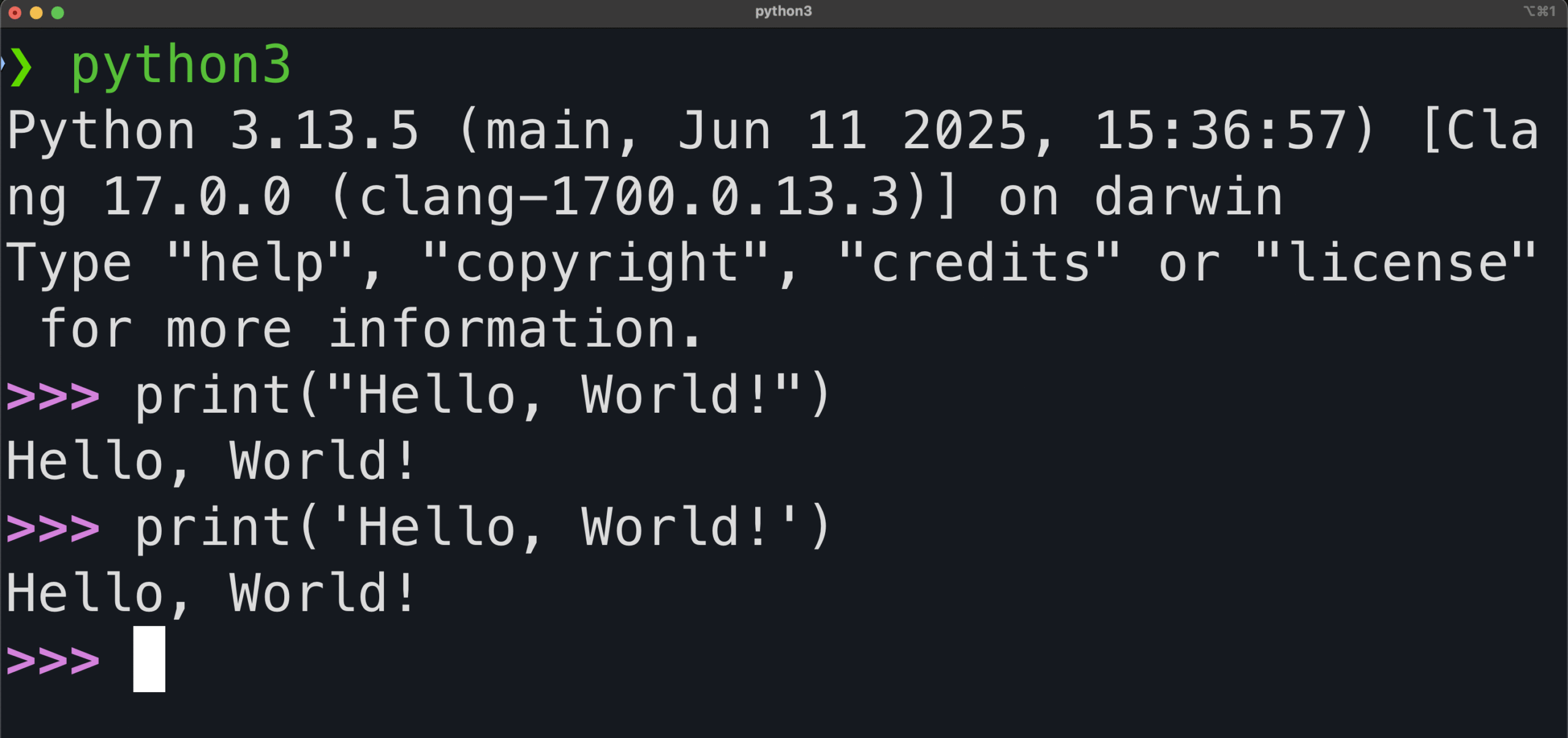
Run the Python programming hello world program using script mode
Now let’s see how to run our first program (Hello, World!) in Python script mode. First of all, you need to open up your favorite text editor or IDE. I’m using VS Code for this. And after that, type the below content into a new file and then save the script with a .py extension. Make sure to always save your Python scripts with the ending of .py
In my case, I saved it as helloworld.py
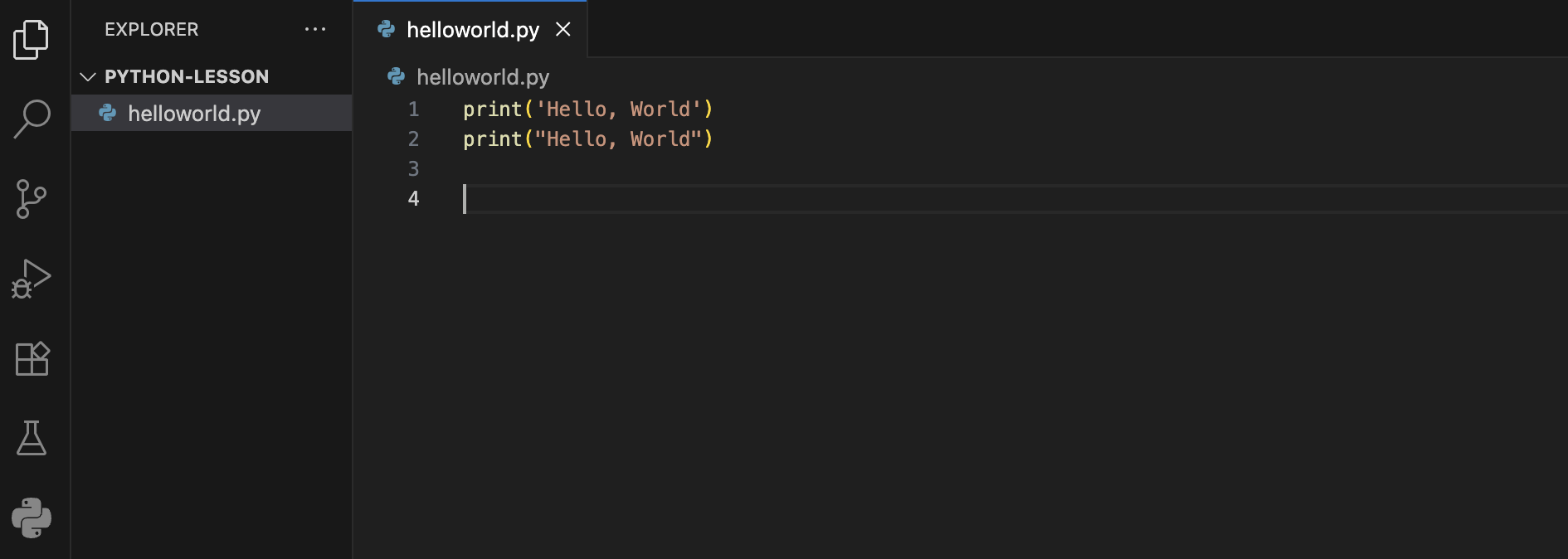
If you are using vscode there are a couple of built-in Python runners available, but I prefer to always follow the hard way. It will help you to understand anything quickly.
Now you have to start your terminal first. To do that in VS Code, you can just navigate to the Terminal section in your top menu and open New Terminal
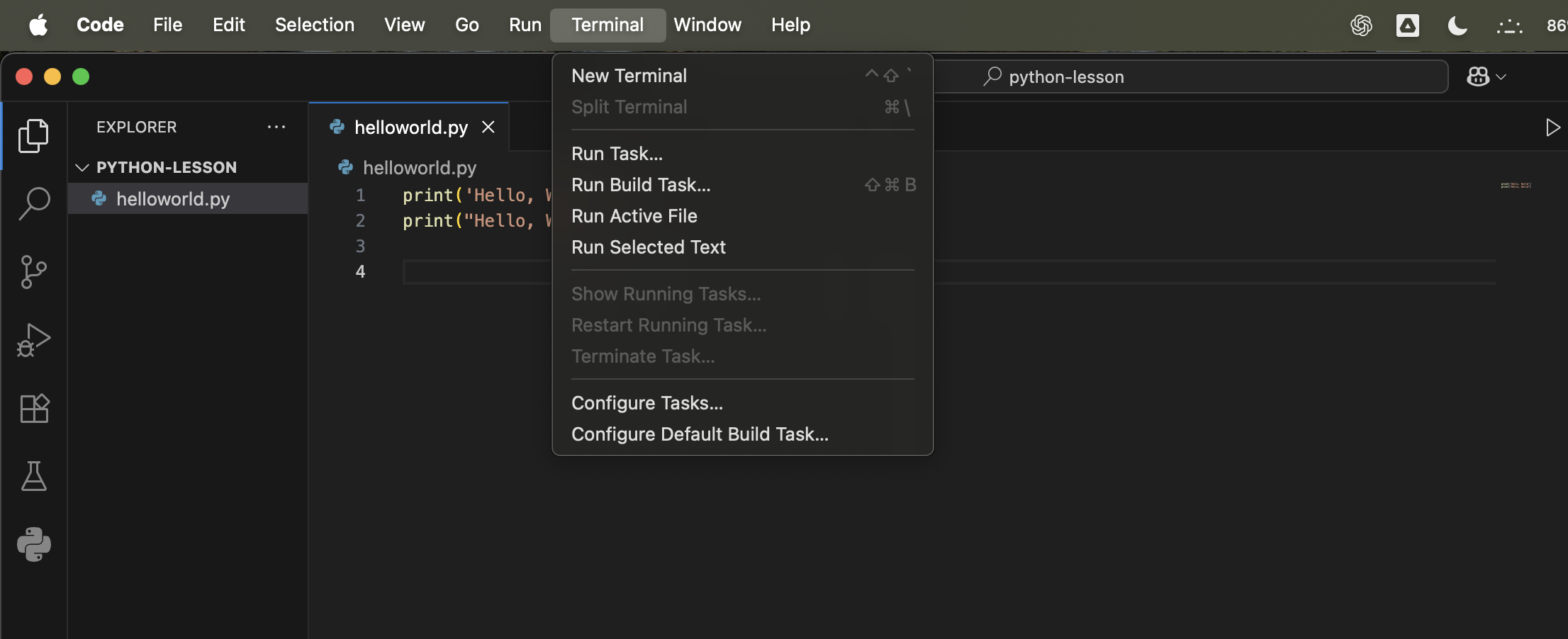
Once you open up a new terminal, you can see it at the bottom of your VS Code window.
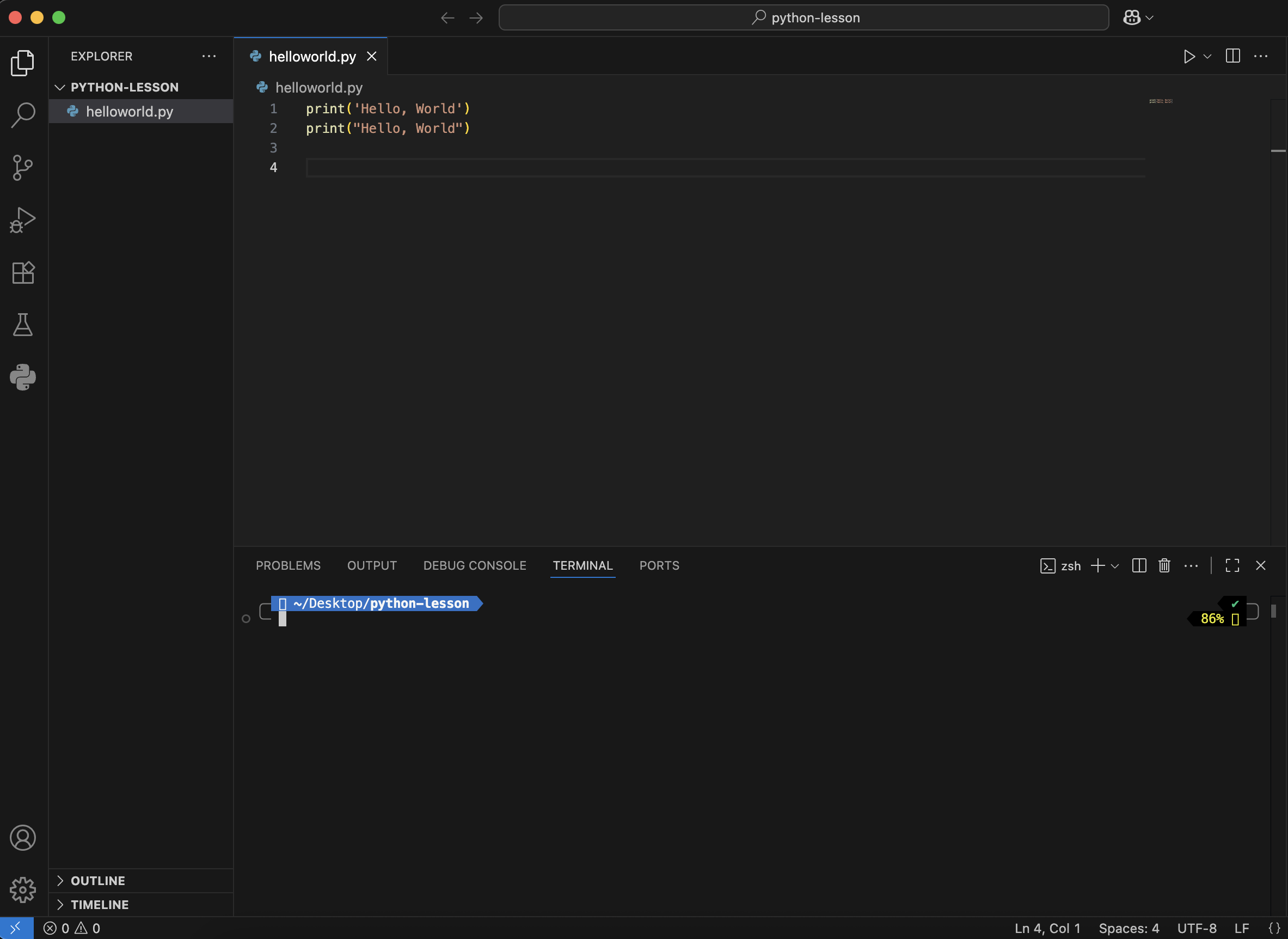
To run a Python script, you need to call Python and pass your script name. But in some systems, you need to use the python3 command instead of using python. It’s because the python command is used for Python version 2, and some systems still use Python 2 for their internal services. So, you need to install a newer version of Python and execute it using the python3 command.
Alright, back to the topic, let’s execute our helloworld.py
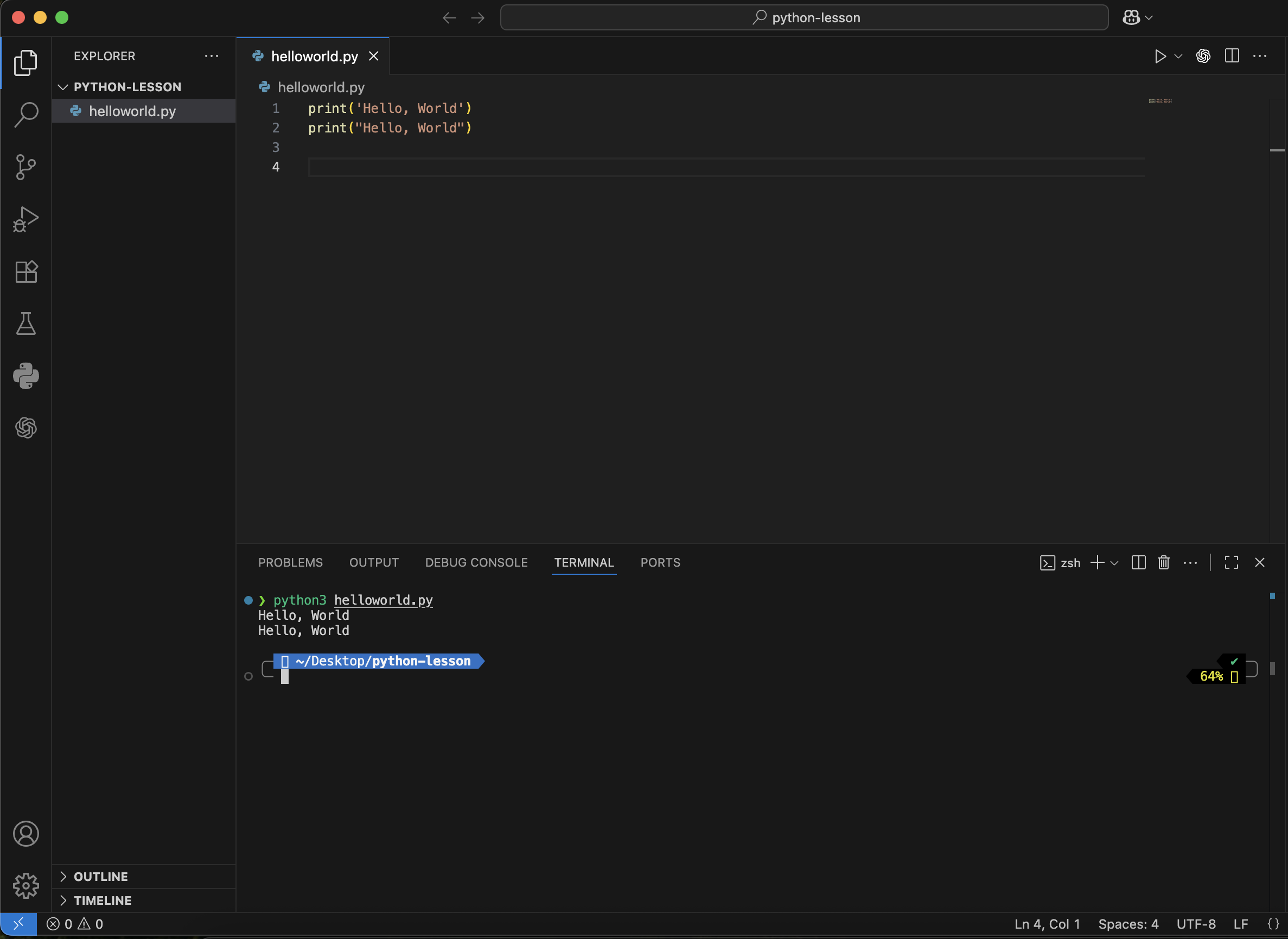
So, what did we learn? We explored the famous “Hello, World!” program and why it’s such a great starting point. You also learned one of the most important skills for your Python journey: how to run your code. With these basics down, you’re ready for what’s next!
Before we conclude, let’s cover one last way to run a Python program: the inline execution method.
How do I run Python code inline in terminal?
python -c "your code here"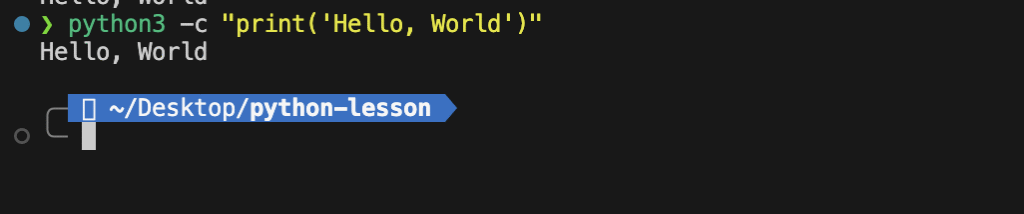
This guide covers the fundamentals of running Python code. We hope you found it useful. If so, please consider sharing it with others. Thank you for reading, and we look forward to bringing you more content soon.
A Third Way: Python’s Built-In IDLE
If you don’t have VS Code installed yet, Python actually ships with its own simple editor called IDLE (Integrated Development and Learning Environment). It installs automatically alongside Python on Windows and macOS, so it’s the fastest way to try Hello World with zero extra setup.
To use it, search for “IDLE” in your Start Menu (Windows) or Spotlight (Mac) and open it. You’ll get a Python shell window identical to the one shown above — type print(“Hello, World!”) and press Enter to run it instantly. To write and save a script instead, go to File → New File, write your code, save it with a .py extension, then press F5 to run it.
Common Hello World Errors (and How to Fix Them)
A few mistakes trip up almost every beginner on their first program:
SyntaxError: Missing parentheses in call to 'print'— this means you’re accidentally running Python 2 syntax (print "Hello, World!"without parentheses) on Python 3. Always useprint("Hello, World!")with parentheses.'python' is not recognized as an internal or external command(Windows) — Python isn’t added to your system PATH. Reinstall Python and make sure to check “Add Python to PATH” during setup, or usepython3instead ofpython.IndentationError: unexpected indent— Python uses indentation to define code blocks, so an extra space or tab before a line (even an invisible one) will break it. Make sure your line starts at the very left margin with no leading spaces.- Nothing happens when you double-click the
.pyfile — this is normal;.pyfiles aren’t meant to be double-clicked. Always run them through the terminal withpython3 helloworld.py.
FAQ
Why does every programming tutorial start with “Hello, World”? It’s a tradition that dates back decades — it’s the simplest possible program that proves your setup works and introduces the language’s basic syntax without any other complexity getting in the way.
What’s the difference between the python and python3 commands? On many systems, python still points to the outdated Python 2, while python3 explicitly runs Python 3. Using python3 avoids ambiguity, especially on Mac and Linux.
Do I need to install anything to try Python? No — you can test code instantly using a free online Python interpreter, no installation required. It’s a great way to experiment before setting up a full local environment.

I’m a tech-savvy writer and passionate software engineer who loves exploring the intersection of technology and creativity. Whether it’s building efficient systems or breaking down complex tech topics into simple words, I enjoy making technology accessible and useful for everyone.





Leave a Reply