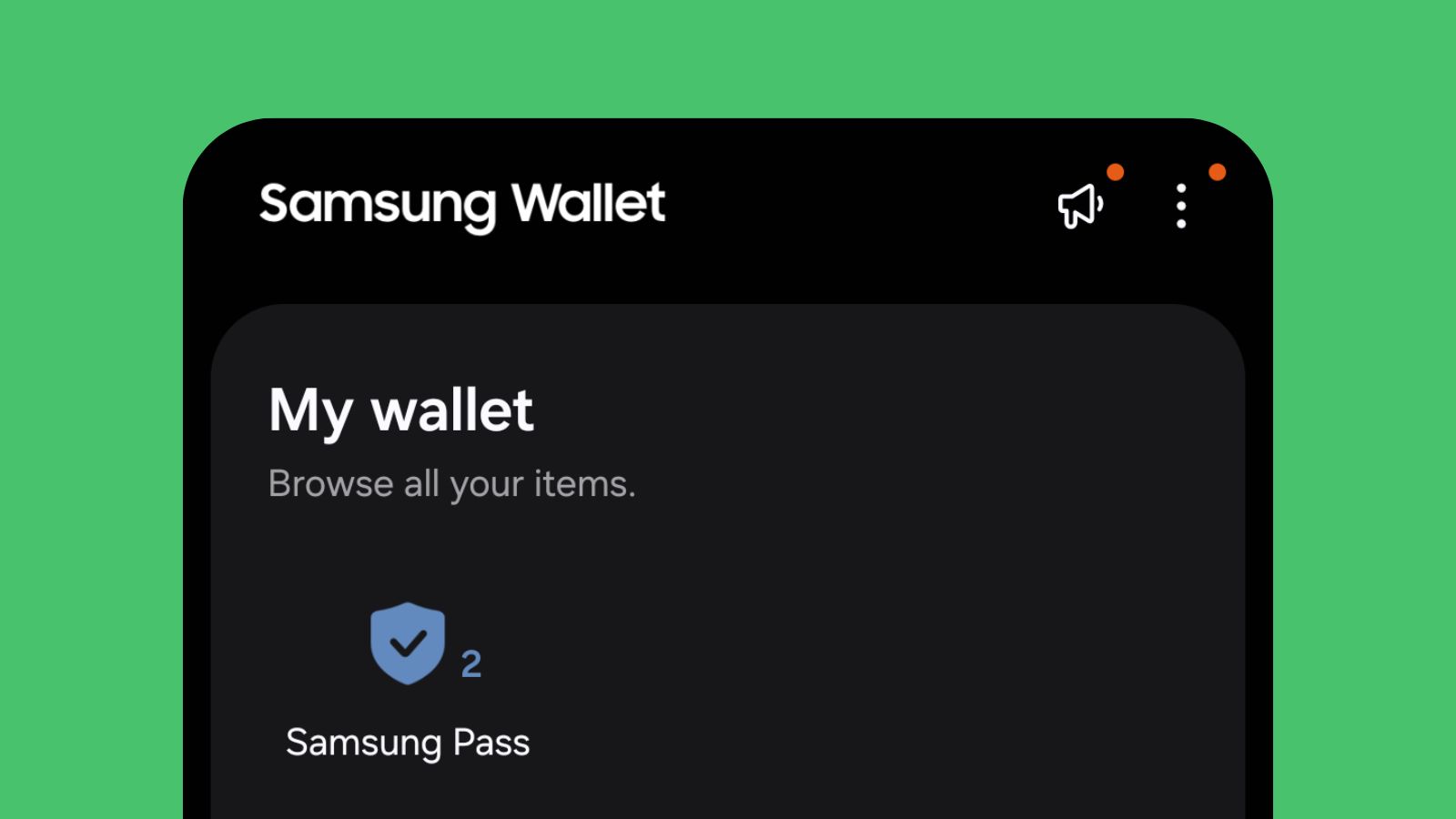
The Samsung password manager is going through a real change: if you’re a Galaxy owner and you’ve noticed a notification recently nudging you to “move to Samsung Wallet,” you’re not imagining it. Samsung is actively retiring the standalone Samsung Pass app in 2026 and folding its features into Wallet, which has quietly been capable of everything Pass does since 2022. If you’ve been putting off that migration prompt, let’s go through exactly what changes, what happens to your saved passwords, and how things work now that it lives in Wallet.
What’s Actually Happening
Samsung merged Pass and Samsung Pay into a single app called Wallet back in 2022, but kept the standalone Pass app running in parallel to give people time to move over on their own schedule. That grace period is ending — Samsung is now actively messaging holdout users to complete the switch, and the standalone Pass app icon disappears once you do. Nothing about your saved data changes in the process: your passwords, passkeys, and other stored credentials carry over into Wallet automatically, just accessed through a different app — Samsung’s own Wallet support page has the full feature rundown if you want to see everything Wallet does beyond just passwords.
What Happens to Your Saved Passwords
Nothing is deleted. When you migrate — or once Samsung completes the transition for you — everything that was stored in Pass (saved logins, passkeys, and autofill data) becomes available inside Wallet’s own password manager section. You don’t need to re-enter anything or set it up from scratch; it’s the same underlying data, just accessed through Wallet’s interface going forward.
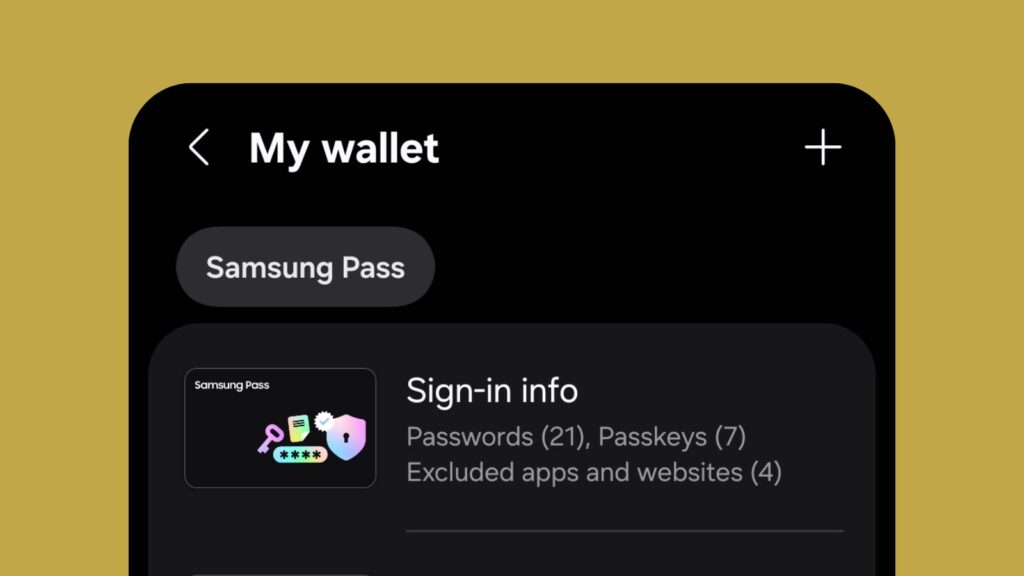
How the Samsung Password Manager Works Inside Wallet
Once your data is in Wallet, day-to-day use is largely identical to how Pass worked:
- Biometric unlock: Sign in to saved sites and apps using your fingerprint, face, or iris scan instead of typing a password each time.
- Autofill across apps and browsers: Wallet fills in saved credentials automatically wherever you’re logging in on your device, the same way Pass did.
- Passkey support: Wallet supports the newer passkey standard for sites and apps that offer it — a password-free login method that’s more phishing-resistant than a typed password.
- Built-in one-time passcodes (OTP): For sites using two-factor authentication, Wallet can generate and autofill the one-time code directly, saving you a trip to a separate authenticator app.
- Hardware-backed encryption: Everything is encrypted and stored using Samsung Knox, the same secure hardware enclave Samsung uses for its most sensitive data, and authentication relies on FIDO (Fast Identity Online) standards for reliability.
The Real Limitations, Worth Knowing Before You Rely on It
This is the part most quick guides skip, and it matters if you’re deciding whether Wallet is enough on its own or you still want a dedicated password manager alongside it:
- No built-in password generator. Unlike Bitwarden, 1Password, or even Google’s own password manager, Wallet won’t create strong random passwords for you — you’ll need to generate them elsewhere and just store them here.
- No proper cross-device sync. Your data stays local to your Samsung device rather than syncing through the cloud to a laptop or a non-Samsung phone. If you regularly move between a Galaxy phone and, say, a Windows PC or an iPhone, this is a real gap — Wallet works well as your on-device vault but isn’t a substitute for a true cross-platform password manager.
- Samsung ecosystem only. This is built specifically for Galaxy devices and doesn’t extend to other platforms the way third-party password managers do.
Should You Use It as Your Only Password Manager?
If you’re fully inside the Samsung ecosystem — one Galaxy phone, maybe a Galaxy tablet, nothing else — Wallet’s password manager is a genuinely solid, secure, no-extra-cost option, and the Knox-backed encryption is a real security advantage over just remembering passwords or keeping them in a notes app. If you regularly switch between devices from different brands, it’s worth pairing Wallet with (or replacing it entirely with) a dedicated cross-platform password manager that syncs everywhere your accounts need to be.
Frequently Asked Questions
Do I need to do anything before Samsung deletes the Pass app?
If you haven’t already been prompted to migrate, opening the Wallet app itself typically triggers the transfer automatically. Your data isn’t at risk either way — Samsung has built this specifically so nothing gets lost in the transition.
Is the Samsung password manager inside Wallet actually safe to use?
Yes — it relies on the same Knox hardware-backed encryption Samsung uses for its most sensitive features, combined with biometric authentication and FIDO standards, which is a genuinely strong security foundation.
Can I still access my passwords if I switch away from a Samsung phone later?
Not directly — since Wallet doesn’t sync outside the Samsung ecosystem, you’d need to manually export or re-enter your credentials into a new password manager if you ever move to a non-Samsung device. Worth keeping in mind if you don’t expect to stay on Galaxy devices long-term.
Either way, nothing about this migration is a reason to worry — just a reason to know where your passwords actually live now. And if you’re weighing whether Wallet’s built-in protection is enough for something like a sensitive email, our guide on sending secure email in Gmail covers the same “is this actually secure or just access-controlled” question for a different everyday tool. For a related but different risk, our guide on identifying phishing links is worth a read too — no password manager protects you from typing your password into a fake site.

I’m a tech-savvy writer and passionate software engineer who loves exploring the intersection of technology and creativity. Whether it’s building efficient systems or breaking down complex tech topics into simple words, I enjoy making technology accessible and useful for everyone.





Leave a Reply